
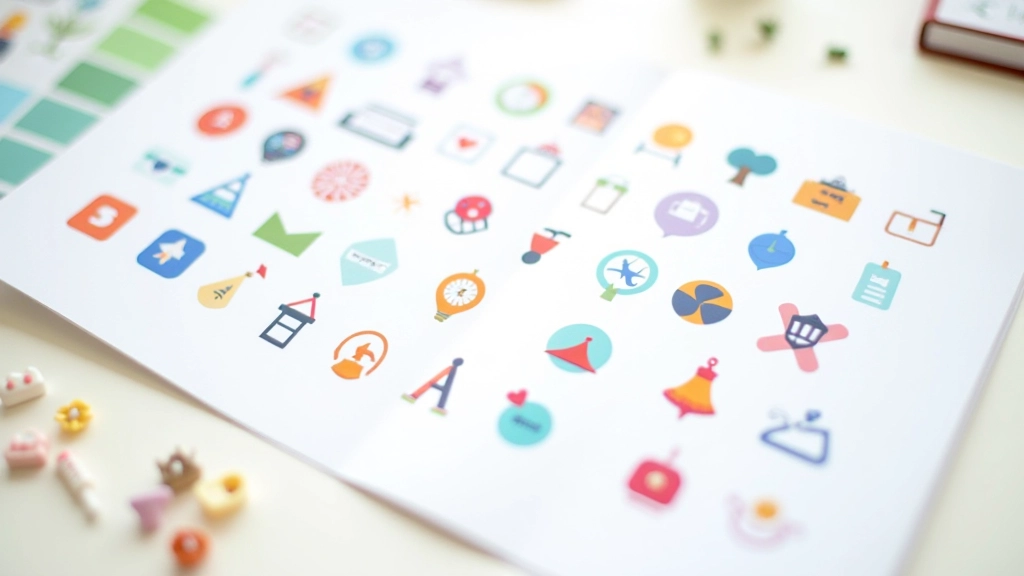
Building a Cohesive Icon System
How to create icons that look intentional together. We cover grid systems, stroke consistency, and creating visual harmony across your entire icon library.
Read ArticleIcons and illustrations need room to breathe. Learn how whitespace, alignment, and visual rhythm create professional interfaces that actually work.

Here’s the thing — a beautiful icon doesn’t automatically become part of a beautiful interface. You could have the most perfectly drawn illustration, but place it wrong and the whole design falls apart. Spacing isn’t just about making things look neat. It’s about creating hierarchy, guiding the eye, and making your interface actually usable.
When we talk about spacing fundamentals, we’re really talking about breathing room. Too little space and your icons feel cramped, competing for attention. Too much and they feel isolated. The sweet spot? That’s where design becomes intuitive.

Most professional icon designers work with an 8px grid. Why eight? It’s divisible, scalable, and creates rhythm. Start with an 8px baseline and build from there — 16px, 24px, 32px, 48px. These increments feel natural to the human eye and keep everything aligned.
Think of it like typography. You don’t choose random line heights. You establish a system, then work within it. Your icons live in the same world. An 8px grid gives you:
Start measuring everything in 8px units. You’ll notice alignment becomes second nature.
Alignment is the glue that holds a design together. Icons don’t live in isolation — they sit next to text, inside buttons, floating in navigation. Each placement tells a story about how the interface works.
You’ve got three main alignment approaches:
Sometimes perfectly centered looks slightly off. Your eye’s lying. Mathematical center and optical center aren’t always the same — especially with icons that have weight distributed unevenly. Don’t be afraid to nudge things 1-2px for visual balance.
When you’re placing an icon next to text, center them vertically. Doesn’t matter if it’s 16px or 32px — that baseline alignment keeps everything looking intentional.
Spacing is a design tool. More space around something makes it feel important. Tight spacing groups related elements. This is how you guide users through your interface without saying a word.
In practice, that means:
Keep 16px of space between related icons, but 32px between different groups. Users instantly understand what belongs together.
Give your primary action icon more breathing room. It shouldn’t feel crowded. Secondary actions can sit tighter together.
Empty space isn’t wasted space. It’s part of your design language. Treat it with the same intention as your icons.
If your icon is interactive, you need padding. The minimum touch target on mobile should be 44x44px. That’s Apple’s guideline and it exists for a reason — fingers aren’t precise. An 24px icon needs at least 10px of padding around it to be safely tappable.
On desktop, you can be tighter. A 16px icon with 8px padding feels right on a computer screen. But mobile? Give it space. Nothing’s worse than accidentally hitting the wrong button because targets are too close together.
And here’s a practical tip — document your padding standards. Write down that buttons use 12px padding, icon groups use 16px gaps, card spacing is 24px. Then actually follow it. Consistency is what makes a design feel polished.
Theory’s nice, but implementation is where things get real.
Don’t eyeball spacing. Use your design tool’s measurement feature. If it’s not exactly 24px, adjust it. Precision compounds into polish.
Define your spacing scale upfront. Small (8px), Medium (16px), Large (24px), XL (32px). Use these consistently across your entire design system.
Enable the grid in your design tool and snap everything to it. Once spacing becomes muscle memory, you can break the grid intentionally.
Zoom out or squint at your design. Does the visual hierarchy read clearly? Can you tell what’s important without reading labels?
Spacing that looks right on a 27-inch monitor might feel wrong on an actual phone. Always preview your work at the actual size users will see it.
When you pass designs to developers, be explicit. Don’t just say “add space.” Say “16px gap between icons, 24px padding inside buttons.”
Good spacing isn’t magic — it’s a system. Start with an 8px grid, establish your spacing scale, and apply it consistently. Alignment matters more than you think because users subconsciously read alignment as intentionality. When everything lines up and has breathing room, your interface feels professional. When it doesn’t, users feel it, even if they can’t articulate why.
Your icons are just one part of the puzzle. How you place them, the space you give them, and how they align with everything else — that’s where the real design work happens. Start measuring today. You’ll be surprised how much better things look when you’re intentional about every pixel.
The guidelines shared here represent common industry practices and recommendations from major design systems (Apple’s Human Interface Guidelines, Google’s Material Design, etc.). However, every project has unique constraints and requirements. Spacing and alignment principles should be adapted to your specific context, audience, and platform. What works for iOS may need adjustment for Android. What works for desktop applications may differ for web interfaces. Always test your designs with real users and be prepared to adjust based on actual behavior and feedback. Design systems are living documents — they evolve as your product and understanding grow.